How to Change Screen Resolution (Windows, Mac & Linux)
Changing your screen resolution allows you to adjust how sharp, large, or detailed content appears on your display.
Whether you are troubleshooting blurry text, setting up a new monitor, or optimizing for gaming, adjusting your resolution can improve your experience.
Before changing settings, you can check your current resolution here: 👉 Check Your Screen Resolution Instantly
How to Change Screen Resolution in Windows 11 / Windows 10
- Right-click on the desktop.
- Select Display settings.
- Scroll to Display resolution.
- Choose your preferred resolution from the dropdown.
- Click Keep changes if the screen looks correct.
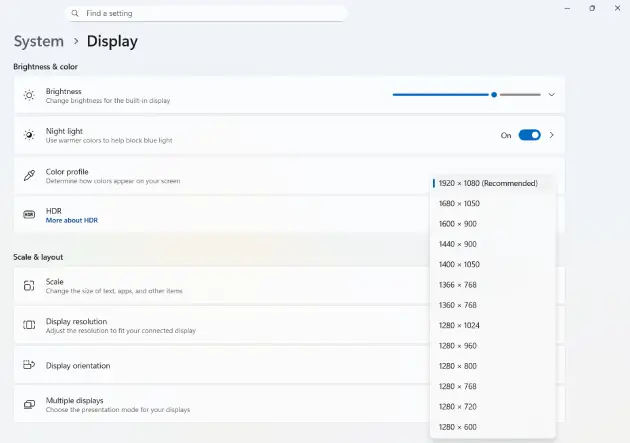
💡 Tip: Always choose the resolution labeled (Recommended) for best clarity.
Common Windows Issues
- Resolution option missing → Update graphics drivers.
- Blurry text → Check scaling settings (125%, 150%, etc.).
- Multiple monitors → Select the correct display before changing resolution.
How to Change Screen Resolution on Mac
- Click the Apple menu ().
- Select System Settings (or System Preferences).
- Click Displays.
- Select Scaled instead of Default.
- Choose your preferred resolution.
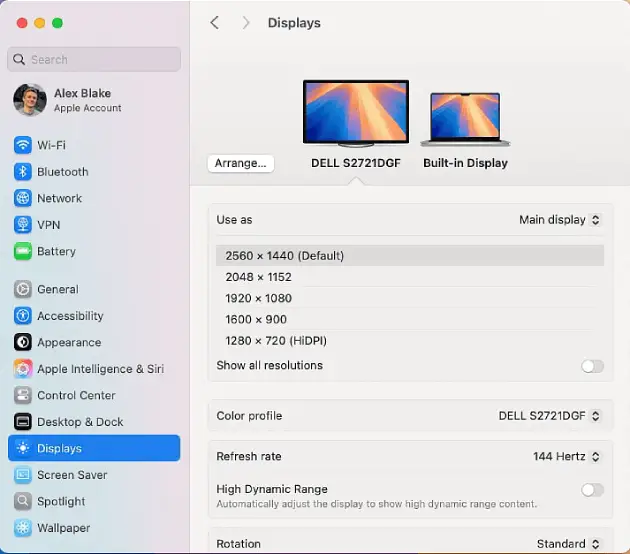
On Retina displays, macOS may show options like:
- Larger Text
- Default
- More Space
These options adjust scaling rather than raw pixel resolution.
How to Change Screen Resolution in Linux (Ubuntu)
- Open Settings.
- Go to Displays.
- Select your monitor.
- Choose a resolution from the list.
- Click Apply.
Advanced users can also use the command line:
xrandr
This shows available resolutions and allows manual switching.
Screen Resolution vs Display Scaling
Sometimes changing resolution is not the right solution. If text looks too small or too large, adjust scaling instead.
Scaling affects how CSS pixels map to physical pixels. Learn more here: What Is Device Pixel Ratio?
What Is the Best Screen Resolution?
The best resolution is usually the native (recommended) resolution of your monitor.
- 1080p monitor → Use 1920 × 1080
- 1440p monitor → Use 2560 × 1440
- 4K monitor → Use 3840 × 2160
Using a lower resolution than native may cause blurriness.
Troubleshooting Resolution Problems
1. Resolution Not Available
Update your graphics drivers or check monitor cable connections.
2. Screen Looks Stretched
Check aspect ratio settings in your GPU control panel.
3. Black Screen After Change
Wait 15 seconds — Windows and Mac automatically revert if no confirmation is selected.
How to Check Your Current Resolution
Instead of opening system settings, you can instantly detect:
- CSS screen resolution
- Viewport size
- Device Pixel Ratio (DPR)
- Estimated physical resolution
👉 Use Our Free Screen Resolution Checker
Conclusion
Changing screen resolution is simple on Windows, Mac, and Linux. Always choose the recommended setting for best clarity and performance.
If you’re unsure what your current resolution is, check it instantly using our free tool above.